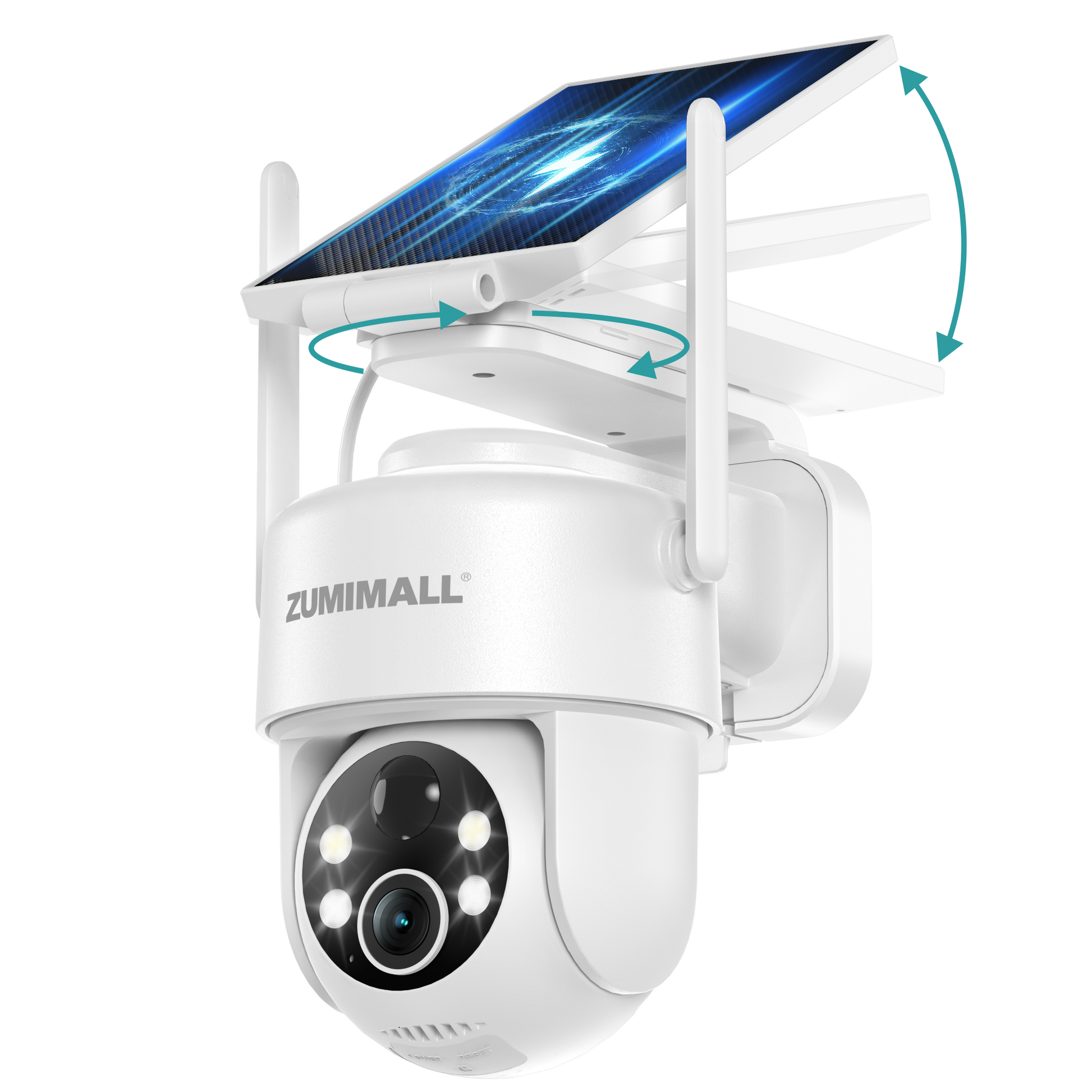
You changed your home WiFi password — and now your ZUMIMALL camera has gone offline. It's a common situation, and the camera isn't broken. It simply no longer has the credentials to join your network.
The fix is straightforward: you'll need to manually reset the camera and reconnect it to the new WiFi network, just like you did when you first set it up. Here's the complete process, step by step.
Why the Camera Disconnects After a WiFi Password Change
Your ZUMIMALL camera stores the WiFi network name (SSID) and password so it can reconnect automatically after a power loss or reboot. When you change the WiFi password on your router, the camera keeps trying to connect using the old password — and fails. Most cameras do not have a way to update the WiFi password remotely, so a manual reconfiguration is required.
There is no way to "push" the new password to the camera from the App while it's offline. The camera must be reset and added again as if it were a new device.
Make sure you know your new WiFi password and that your phone is connected to the 2.4 GHz WiFi band. ZUMIMALL cameras typically do not support 5 GHz WiFi networks.
Step-by-Step: Reconnect Your Camera to the New WiFi
Step 1: Remove the Old Device from the App
Open the ZUMIMALL App and find the camera in your device list. Long-press the device or open its settings and select Remove Device (or Delete). This clears the old WiFi binding record from your account so the camera can be added fresh.
Step 2: Reset the Camera
Locate the Reset button on the camera body. With the camera powered on, press and hold the Reset button for 5 to 10 seconds. Release it when you hear the "Boogu" prompt tone and see the status indicator slowly flashing red. The camera is now in pairing mode and ready to be added again.
Step 3: Add the Camera and Enter the New WiFi Password
Return to the ZUMIMALL App home screen and tap Add Device. Follow the on-screen pairing instructions. When the App asks for your WiFi password, enter your new WiFi password. The camera will connect to the new network and appear in your device list again.
During pairing, keep your phone, the camera, and the router close together. A strong, stable signal makes the initial connection much more reliable. If the pairing fails, move the camera closer to the router and try again.
Common Issues and Fixes
- Camera won't enter pairing mode: Make sure the camera is powered on before pressing Reset. Hold the button long enough — some units need a full 10 seconds. If it still won't respond, try a power cycle (unplug, wait 15 seconds, plug back in) and repeat.
- Pairing fails with the new password: Double-check that your phone is on the 2.4 GHz band, not 5 GHz. If your new password contains special characters, try simplifying it temporarily to rule out compatibility issues.
- Camera connects but shows offline: Confirm the router is broadcasting the 2.4 GHz network and that the camera is within range. Restart the router and the camera, then check the App again.
- Forgot the WiFi password: You'll need to retrieve it from your router settings or your internet provider before reconnecting the camera.
A WiFi password change doesn't mean you need a new camera — a quick reset and re-pairing is all it takes to get back online.
Will Resetting the Camera Delete My Recordings?
No. Resetting the camera clears its network configuration and pairing information, but it does not erase footage stored on a Micro SD card or in cloud storage. Your historical recordings remain intact. The only way recordings are lost is if you manually format the SD card in the App after reconnecting — so avoid that step unless you intend to wipe the card.
Conclusion
When your home WiFi password changes, your ZUMIMALL camera needs to be reset and re-added with the new credentials. The process takes only a few minutes: remove the old device from the App, hold the Reset button until the indicator flashes red, then add the camera again and enter your new WiFi password. Your existing recordings are safe, and your camera will be back online in no time.
If you're setting up a new camera or expanding your system, explore ZUMIMALL's full lineup of outdoor security cameras for reliable connectivity and easy setup.
Explore ZUMIMALL Security Cameras →Ran into trouble reconnecting your camera? Drop a comment below — we'd love to help you get it back online.
Complete Your Security Setup