


How to add devices?
Follow the steps below to set up your ZUMIMALL camera.
Each step is illustrated with a corresponding image.
Operation Guide
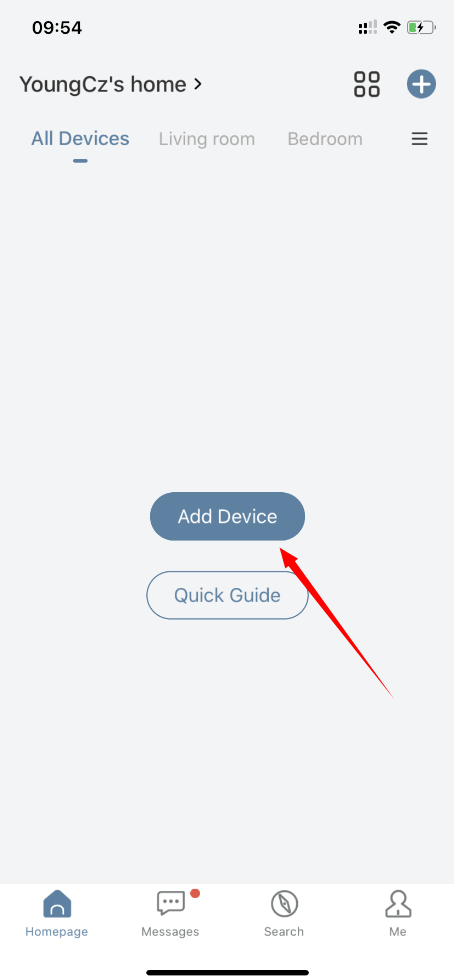
1 Select the Add "+" button
2 Choose a different product category
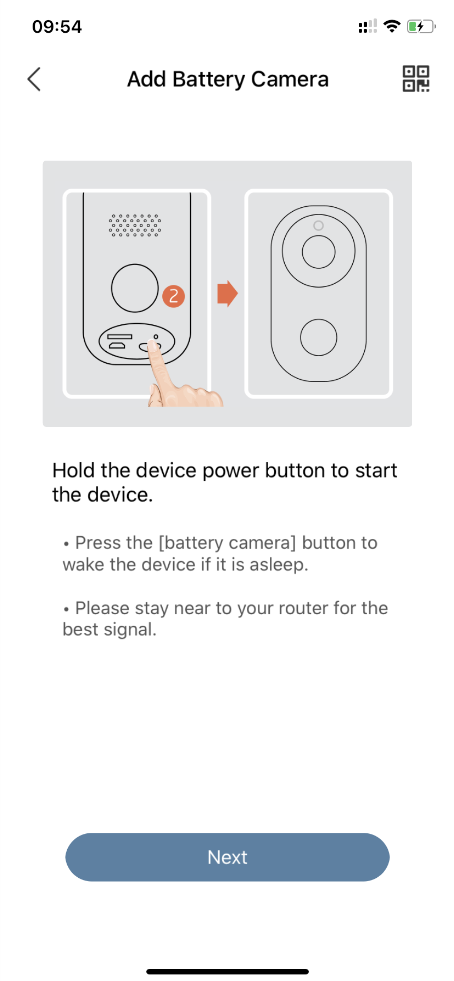
3 Turn on the camera
4 Reset the camera
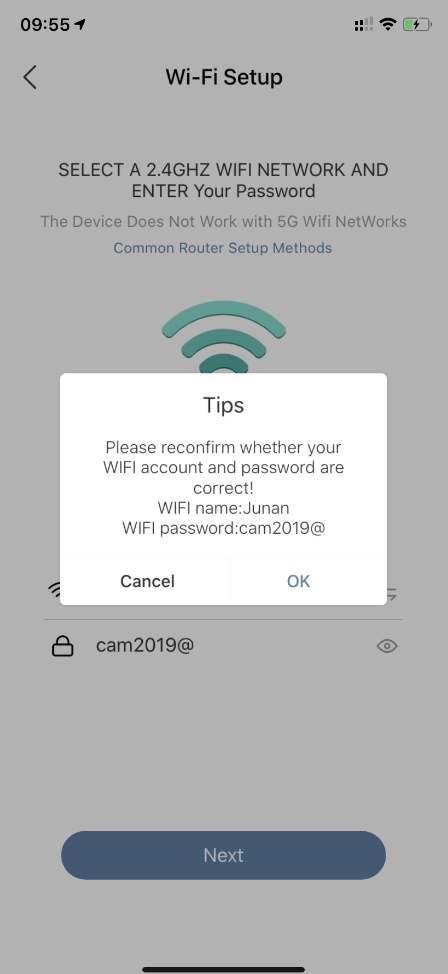
5 Enter the correct WIFI password and confirm
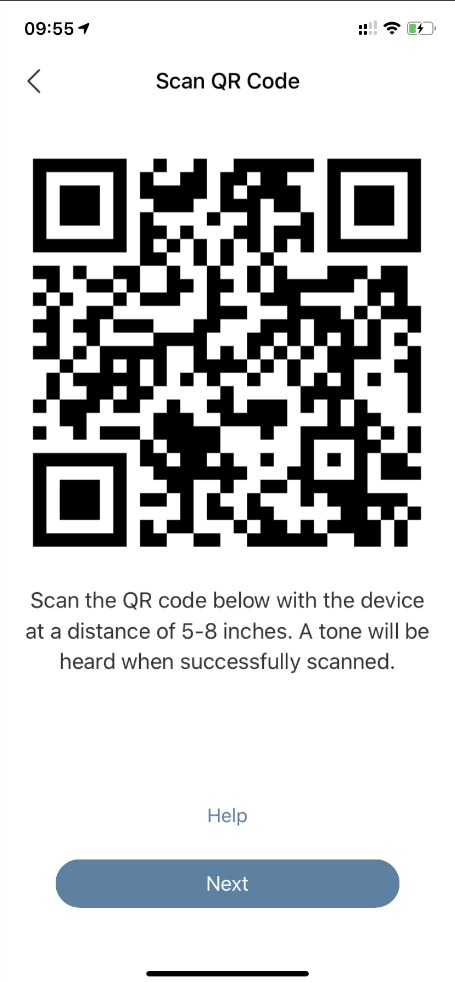
6 Point camera lens to APP QR code
7 Scan QR code from 5~8 feet
8 Waiting for connection
9 Add success
10 Install camera per instructions
11 Name the camera
12 Use the camera
Step 1
Step 2

Step 3
Step 4

Step 5
Step 6

Step 7
Step 8

Step 9
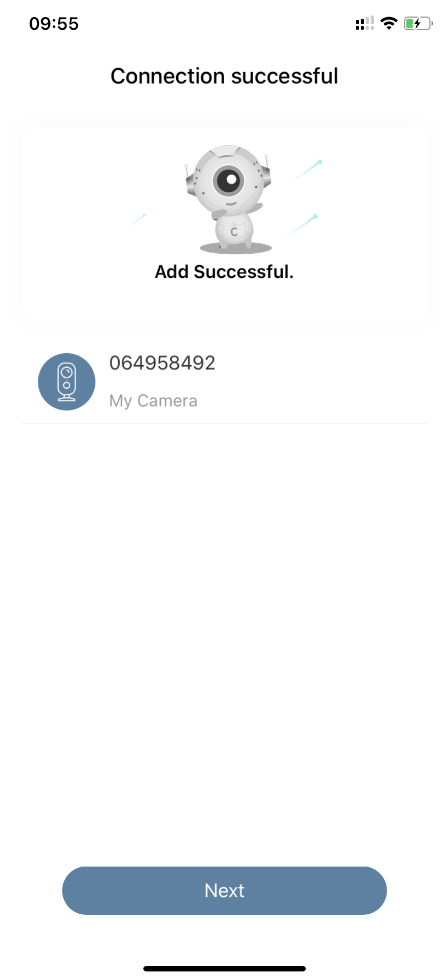
Step 10

Step 11
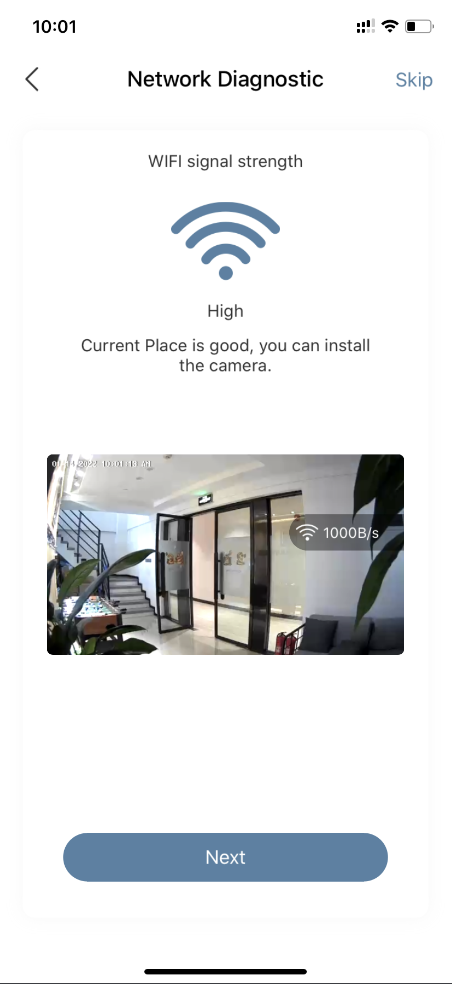
Step 12

Step 13
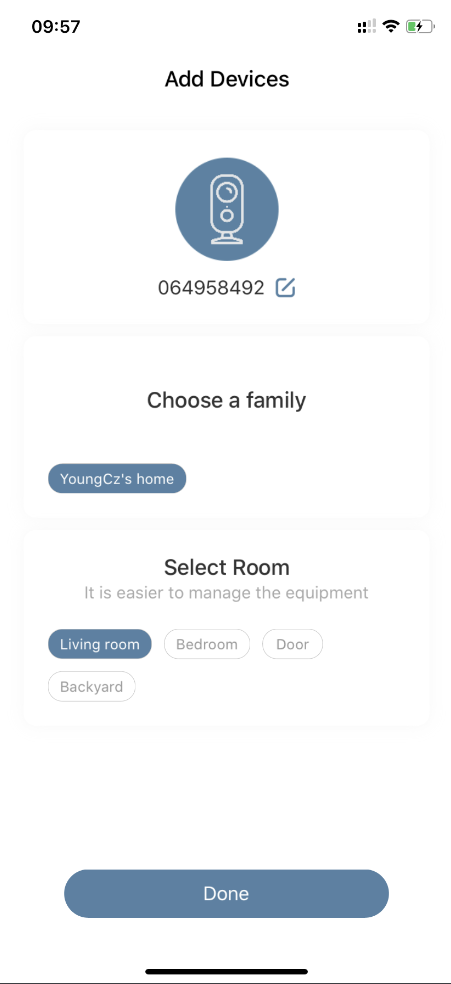
Step 14

Explore the ZUMIMALL Lineup

ZUMIMALL No Drilling Battery Camera
Learn More →

ZUMIMALL Plug-in 24/7 Recording Camera
Learn More →

ZUMIMALL Video Doorbell Camera
Learn More →
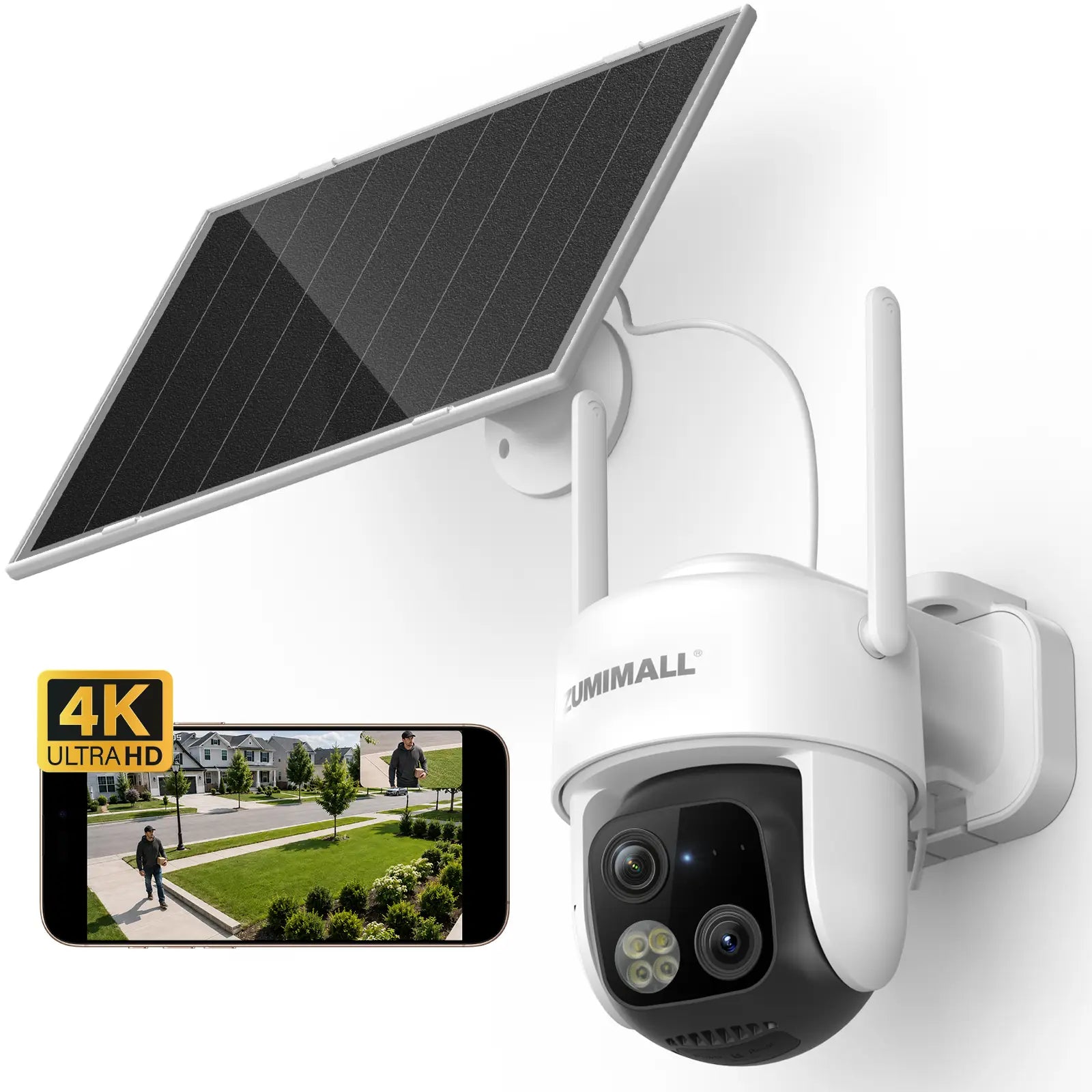
ZUMIMALL 4K AOV Dual Lens Solar Cam
Learn More →

Solar Power Wireless Security Camera
Learn More →

4G LTE Cellular Solar Powered Camera
Learn More →

Outdoor Solar Powered Security Camera
Learn More →

ZUMIMALL Dual Lens Video Doorbell Camera
Learn More →

Outdoor Solar Security Camera
Learn More →
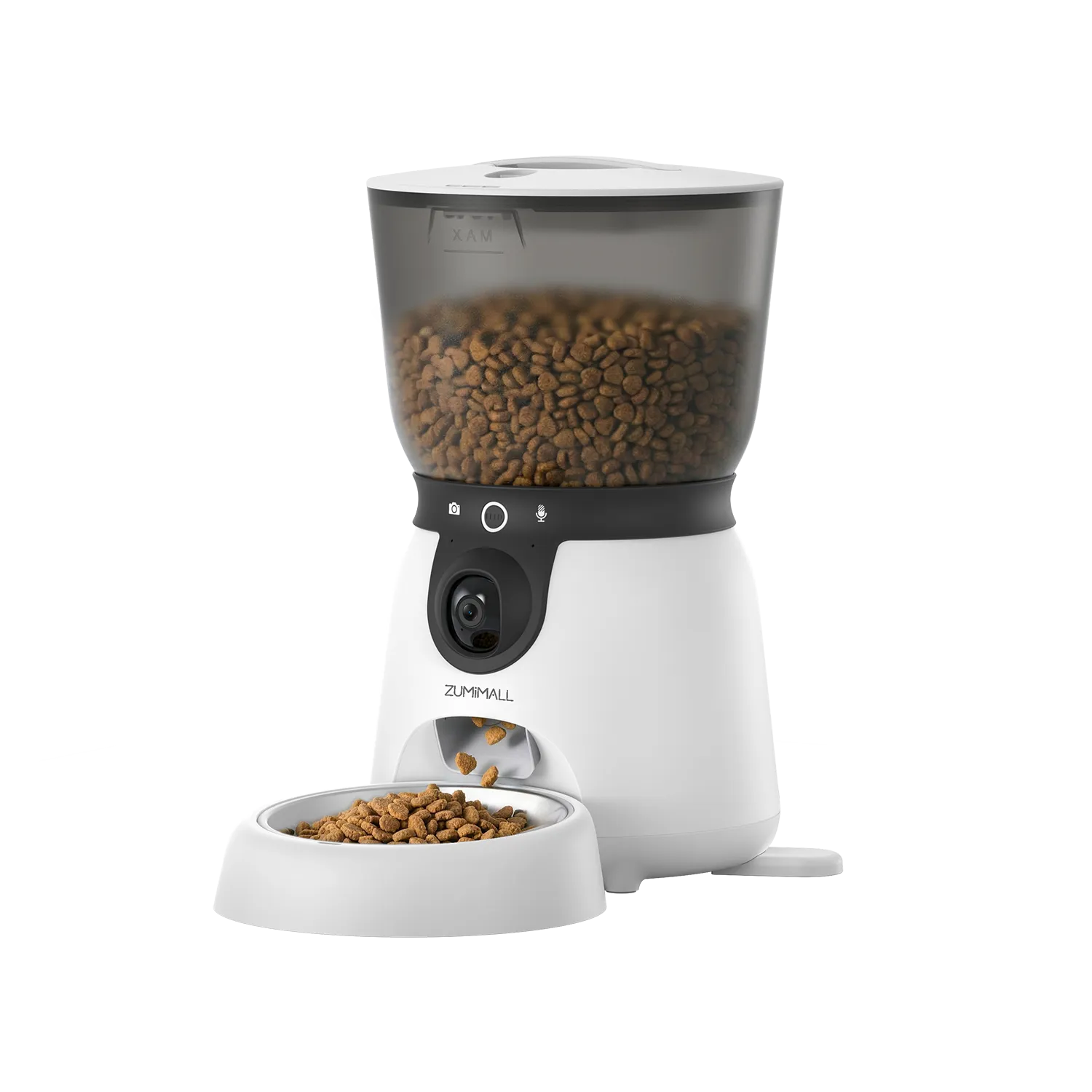
ZUMIMALL Smart Pet Feeder with Camera
Learn More →

Baby/Pet Monitor security Camera
Learn More →

ZUMIMALL Indoor Camera with Laser Light
Learn More →

Outdoor Solar Powered Camera
Learn More →

ZUMIMALL microSD Card
Learn More →

ZUMIMALL 5W Solar Panel
Learn More →