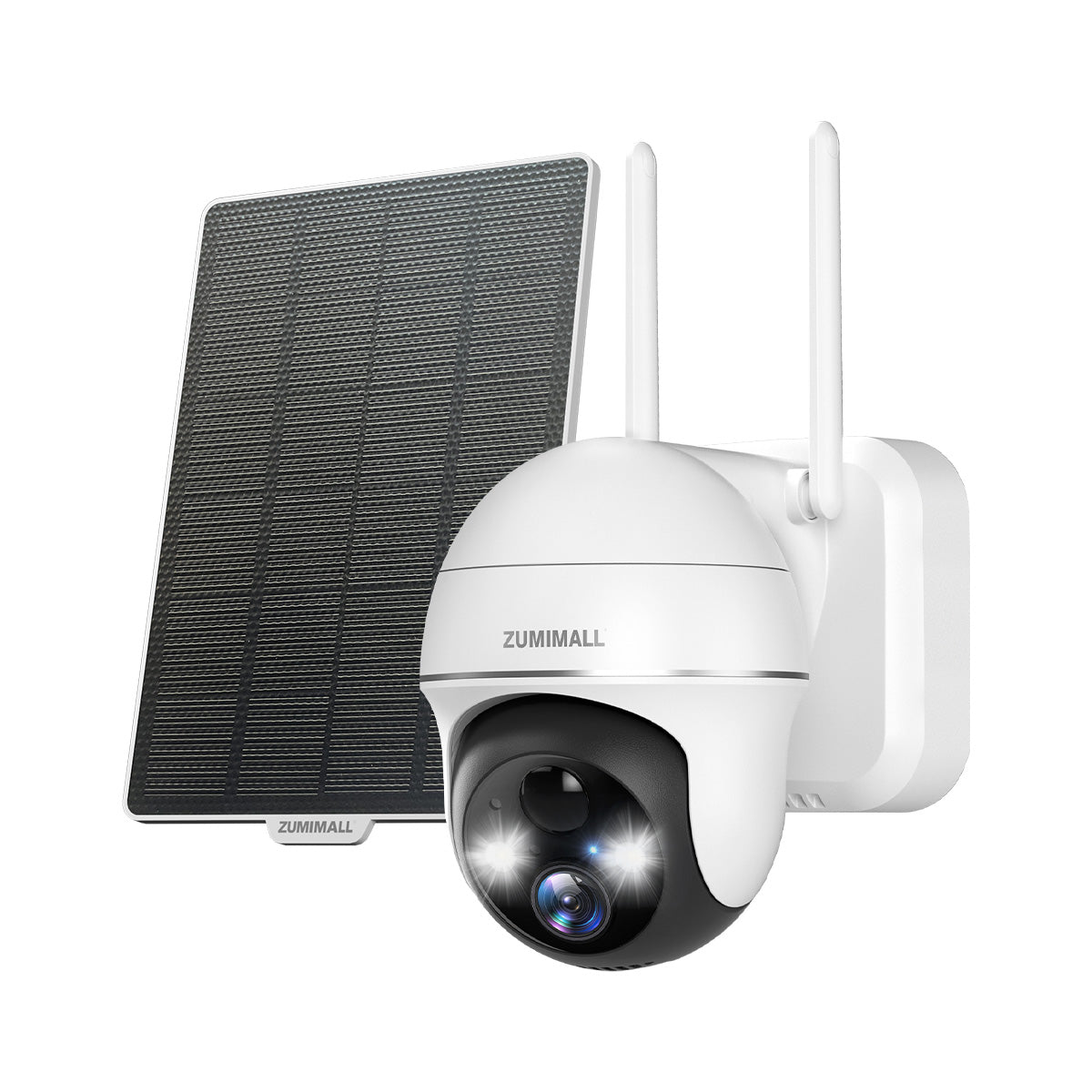
Maintaining a "feeling of security" is our top priority. We recently received a query from a long-term user regarding their camera's spotlight behavior:
If you are facing a similar situation, don't worry! Most light issues are related to sensor settings rather than hardware failure.
1. Understand the Light Logic
First, it is important to know how the smart sensors work. To save energy and provide accurate alerts, the spotlights are designed with these conditions in mind:
- Night Use Only: The lights will only trigger when the camera detects the environment is dark. If it's bright outside, the light will stay off.
- Motion Triggered: In standard modes, the light will only flash or turn on when motion detection is triggered by a human or vehicle.
2. Check Your App Settings (Step-by-Step)
If your lights aren't behaving as expected, ensure the White Light Warning feature is enabled. Please follow the steps illustrated in the guide below:
1 Tap on "Alarm Management" in device settings.
2 Select "Audio Warning and Strobe Light".
3 Toggle the main switch ON.
4 Select "White Light warning" as the alarm method.

3. Choose the Right Night Vision Mode
The light behavior at night depends entirely on your chosen Night Vision Mode. You can find this under "Image Settings".
• Intelligent Vision (Recommended)
The camera displays black and white images by default. When motion is detected, the white lights automatically turn on to capture full-color evidence. Once the movement stops, the light turns off to save power.
• Full Color Night Vision
The warm lights stay on all night long to present continuous color images.
• Black and White Night Vision
The camera uses infrared only. The white lights will not turn on even if motion is detected. Choose this if you prefer a discreet surveillance presence.

4. Quick Hardware Test via Preview Page
To verify if your lights are still functioning physically, you can test them manually in real-time:
- Open the Live Preview page of your camera.
- Locate the "Light" icon in the function bar.
- Tap it to turn the light on manually. If the light illuminates in the preview, your camera's hardware is working perfectly!

Need Personalized Help?
We are always here for our friends. Reach out directly and we'll get your security back on track.
Contact Support